Creating a ClickOnce Application in Visual Studio 2015

ClickOnce functionality allows you to create an application that checks for updates. It can do this before it starts (you’ll always run with the latest version, even if you will see the update-check when it starts) or after it starts (better for large updates). When you’re publishing, you can also specify the minimum acceptable version that is to be running, which will automatically do the update when in violation. It obviously follows that you can also specify whether the application is allowed to be run when offline (read: when it can’t check for updates).

Though most aspects of Microsoft development are unnecessarily complicated this is ridiculously easy.

Open project properties and go to the “Signing” panel:

ClickOnce - 1 - Certificate

Check the “Sign the ClickOnce manifests” checkbox. Click the “Create Test Certificate…” button and create a self-signed certificate (you can create an official one after you adopt and formalize the process):

ClickOnce - 1 - Certificate

Navigate to the “Publish” panel and fill in the path to push files and the UNC/URL that that directory can be accessed at for update polling and downloads:

ClickOnce - 2 - Paths and Updates

Click on the “Updates…” button and check “The application should check for updates”. Make sure to change where in the lifecycle the update should be performed if the default doesn’t work for you. Check “Specify a minimum required version for this application” and set that version if you want the update to be automatic. When you enable this for the first time, it will likely default to the version that is currently set to publish:

ClickOnce - 3 - Updates

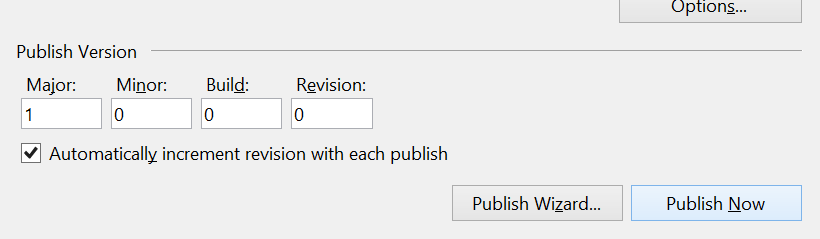
Back in the top “Publish” panel, click on “Publish Now”. You may change the version factors of what you’re publishing, but, as the “Automatically increment revision with each publish” checkbox is checked by default, you shouldn’t have to:

ClickOnce - 4 - Publish

An Explorer window with the published files will probably be opened for you:

ClickOnce - 5 - Publish Files

Go ahead and click setup.exe to install. Forgive the unsigned-publisher security warning:

ClickOnce - 6 - Install - Prompt

You’ll also be presented with a security warning due to the self-signed certificate. Click on “More info” to expose the “Run anyway” button and then click it:

ClickOnce - 7 - Install - Self-Signed Certificate

Go ahead and do another publish (it’ll automatically push using a higher version than last time). Run the application. You’ll be prompted to update unless you changed the minimum-version in order to install automatically:

ClickOnce - 9 - Update Prompt

Using Tokenization (Token Replacement) for Builds/Releases in vNext/TFS 2015

Microsoft has provided support for doing token replacements into build artifacts. Since this is provided as a “utility” task there’s no bias in how it’s used but you’ll likely find it most useful from your release workflow.

Inexplicably, Microsoft doesn’t actually provide this with TFS. Rather, you need to use their marketplace to download and install it. Still, as far as boneheaded designs go, it’s not so bad.

There are three things that it allows you to do:

  1. Do string-replacements using the environment.
  2. Do string-replacements using the environment-specific dictionary from the configuration file.
  3. Do environment-specific XPath replacements.

Note that:

  1. (1) and (2) will expect to find tokens that look like “[A-Za-z0-9._-]*” (e.g. “XYZ“, “ABC_DEF“, “GHI.JKL“, “MNO-PQR“), remove the underscores on the margins, and translate the periods to underscores.
  2. (2) and (3) are only possible if you provide a configuration file and if the source file is XML (obviously).

Installation

Download the Release Management Utility tasks extension (as a VSIX file). Install it using the instructions from my other post. You’ll now see a “Tokenize with XPath/Regular expressions” utility task.

For reference, this is the original project URL:

Extension-UtilitiesPack

Usage

The configuration file looks like:

{
   "Default Environment":{
      "CustomVariables":{
         "Token2":"value_from_custom2",
         "Token3":"value_from_custom3"
      },
      "ConfigChanges":[
         {
            "KeyName":"/configuration/appSettings/add[@key='TestKey1']",
            "Attribute":"value",
            "Value":"value_from_xpath"
         }
      ]
   }
}

If we’re going to do token-replacements over an App.settings file, the source file might look like:

<?xml version="1.0" encoding="utf-8" ?>
<configuration>
    <appSettings>
      <add key="TestKey1" value="__Token1__" />
      <add key="TestKey2" value="__Token2__" />
      <add key="TestKey3" value="__Token3__" />
      <add key="TestKey4" value="__Token4__" />
    </appSettings>
    <startup>
        <supportedRuntime version="v4.0" sku=".NETFramework,Version=v4.5.2" />
    </startup>
</configuration>

Since TestKey4 is not otherwise defined, it will either be replaced with itself (no net difference) or the value for an environment-variable named “Token4” if defined.

In my test situation, my build definition’s “Copy Files” task is copying the contents (“**\*”) of “$(Build.SourcesDirectory)\TestConsoleApplication\bin\Release” to “$(Build.ArtifactStagingDirectory)”. This is an example of the arguments to the “Tokenize with XPath/Regular expressions” task that I’ve added in my release-definition:

  • Source filename: “$(Build.ArtifactStagingDirectory)\drop\App.config.template”
  • Destination filename: “$(Build.ArtifactStagingDirectory)\drop\TestConsoleApplication.exe.config”
  • Configuration Json filename: “$(Build.ArtifactStagingDirectory)\drop\TokenEnvironmentConfig.json”

Personally, I’d prefer that parsing this be a little stricter: fail if can’t parse as JSON, fail if any tokens can not be resolved, and optionally allow it to fail if any XPath specifications don’t match anything.

Additional Notes

  • The RELEASE_ENVIRONMENTNAME variable is usually defined and used to determine the current environment. However, if it isn’t defined then the default environment searched in the configuration file is “default”.

  • The CustomVariables and ConfigChanges blocks don’t have to exist in the configuration file (won’t fail validation). What is there will be used.

  • For debugging, I’ve had issues enabling logging verbosity in PowerShell (with VerbosePreference). It would be easier adjusting the tasks\Tokenizer\x.y.z\tokenize.ps1 module in your build-agent’s directory to change all the instances of “Write-Verbose” to “Write-Host”. The module provides a lot of useful messaging if you can get it to show.

  • In the current version of the task, it provides a PowerShell 3 script in addition to the original PS script. I get the following message on my system: ##[error]Index operation failed; the array index evaluated to null. I downloaded the source-code to the VSIX that is available in the Marketplace, adjusted it to not use the PS3 version of the script, repackaged the VSIX, uploaded it to my on-premise TFS, and, bam, the token-replacement worked perfectly. The PowerShell 3 script is broken.

Uploading Release Management Tasks With a VSIX Extension Package

TFS 2015 lets you define build and release workflows comprised of discrete tasks. Although it provides a handful to you (build-specific, release-specific, general utility, etc..), you can also write your own “Extension Tasks” and upload them. I previously described how to use Microsoft’s tfx tool to upload a single task from the command-line.

You might also need to upload one or more tasks that have been packaged into a VSIX file (Microsoft’s Visual Studio Extension packaging format). These are essentially zip-files that have a manifest and one or more directories. In this case, those directories represent tasks (they each have a task.json file). Although you can probably do this from the command-line using the tfx tool, you can also use your TFS’s web UI to do it. Note that this process will need to be repeated for each collection that you’ll want the extension to be available in.

Click the “Shop” icon to open the corresponding menu and then click on “Browse of Extensions”:

tfsbrowseforextensions.png

Click on the “Manage extensions” button in the middle of the page. It’s not the same link/button as the previous one even if they have the same text:

release-management-extension-upload-3-manage-extensions-2.png

Click on “Upload New Extension”. Browse to the VSIX file and upload it.

release-management-extension-upload-4-extension-upload.png

After, you’re presented with a list of installed extensions:

release-management-extension-upload-5-extension-uploaded.png

Observe that the extension populated on to the previous local-management screen. Click on it:

release-management-extension-upload-6.png

Now, click on “Install”:

release-management-extension-upload-7.png

After installation, the new tasks will be available within the lists of available tasks.

Adding a Task to Your On-Premise TFS 2015 Server

TFS 2015 embeds previous vNext functionality to provide you workflow-driven, scriptable builds. This is based on establishing discrete tasks that can be reused between your build definitions and release definitions as relevant.

You can extend the basic set of tasks, which, though sufficient for very simple builds and releases, might quickly become insufficient. New tasks are called “extension tasks”. Discussing how to create one is out of scope for this post so we’re assuming that you already have a path that describes a task. At the very least, there will be a task.json file in it.

What comes next?

  1. Install Microsoft’s “tfx” tool.
  2. Added support for “Basic Authentication” to your on-premise TFS’ IIS server.
  3. Enable Basic Authentication on that IIS server.
  4. Login to your TFS using the tfx tool.
  5. Upload task.

Instructions

1. Install Microsoft’s “tfx” tool

This is a cross-platform project that requires NodeJS to be installed locally. The TFS-CLI project is hosted here: https://github.com/Microsoft/tfs-cli.

To install:

npm install -g tfx-cli

2. Add support for “Basic Authentication” to your on-premise TFS’ IIS server

On a workstation flavor of Windows (in my case, Windows 8.1):

  1. Go to “Programs and Features” -> “Turn Windows features on or off”.
  2. Navigate down through the tree of features: “Internet Information Services” -> “World Wide Web Services” -> “Security”.
  3. Enable “Basic Authentication” and click “OK”.

If you’re running a server flavor of Windows you’ll have to update the “Web Server” role instead:

(https://github.com/Microsoft/tfs-cli/blob/master/docs/configureBasicAuth.md)

windowsserverconfigurebasicauthfeature.png

Make sure to close and re-open IIS Manager afterward.

3. Enable Basic Authentication in IIS

Under the application, click “Authentication”, right-click on “Basic Authentication”, and click “Enable”. Make sure you enable “Basic Authentication” under the application, not the site. Setting it on the site will be ineffectual.

4. Login to your TFS using the tfx tool

C:\>tfx login --auth-type basic
TFS Cross Platform Command Line Interface v0.3.20
Copyright Microsoft Corporation
> Service URL: http://localhost:8181/tfs/DefaultCollection
> Username: yourdomain\dustin.oprea
> Password:
Logged in successfully

5. Upload task

I tested using the “XLD” task, here:

XL Deploy

Unzip and install by passing the directory path:

tfx build tasks upload --task-path xld

Now, if you go to your list of release tasks (where the XLD task ends-up), you’ll see it:

windowsserverconfigurebasicauthfeature.png

Using XML-RPC with Magento

Sure, we could use a cushy SOAP library to communicate with Magento, but maybe you’d want to capitalize on the cacheability of XML-RPC, instead. Sure, we could use an XML-RPC library, but that would be less fun and, as engineers, we like knowing how stuff works. Magento is not for the faint of heart and knowing how to communicate with it at the low-level might be useful at some point.

import os
import json

import xml.etree.ElementTree as ET

import requests

# http://xmlrpc.scripting.com/spec.html

_HOSTNAME = os.environ['MAGENTO_HOSTNAME']
_USERNAME = os.environ['MAGENTO_USERNAME']
_PASSWORD = os.environ['MAGENTO_PASSWORD']

_URL = "http://" + _HOSTNAME + "/api/xmlrpc"

_HEADERS = {
    'Content-Type': 'text/xml',
}

def _pretty_print(results):
    print(json.dumps(
            results, 
            sort_keys=True,
            indent=4, 
            separators=(',', ': ')))

def _send_request(payload):
    r = requests.post(_URL, data=payload, headers=_HEADERS)
    r.raise_for_status()

    root = ET.fromstring(r.text)
    return root

def _send_array(session_id, method_name, args):

    data_parts = []
    for (type_name, value) in args:
        data_parts.append('<value><' + type_name + '>' + str(value) + '</' + type_name + '></value>')

    payload = """\
<?xml version='1.0'?>
<methodCall>
    <methodName>call</methodName>
    <params>
        <param>
            <value><string>""" + session_id + """\
</string></value>
        </param>
        <param>
            <value><string>""" + method_name + """\
</string></value>
        </param>
        <param>
            <value>
                <array>
                    <data>
                        """ + ''.join(data_parts) + """
                    </data>
                </array>
            </value>
        </param>
    </params>
</methodCall>
"""

    return _send_request(payload)

def _send_struct(session_id, method_name, args):
    struct_parts = []

    for (type_name, argument_name, argument_value) in args:
        struct_parts.append("<member><name>" + argument_name + "</name><value><" + type_name + ">" + str(argument_value) + "</" + type_name + "></value></member>")

    payload = """\
<?xml version='1.0'?>
<methodCall>
    <methodName>call</methodName>
    <params>
        <param>
            <value><string>""" + session_id + """\
</string></value>
        </param>
        <param>
            <value><string>""" + method_name + """\
</string></value>
        </param>
        <param>
            <value>
                <struct>
                    """ + ''.join(struct_parts) + """
                </struct>
            </value>
        </param>
    </params>
</methodCall>
"""

    return _send_request(payload)

def _send_login(args):
    param_parts = []
    for (type_name, value) in args:
        param_parts.append('<param><value><' + type_name + '>' + value + '</' + type_name + '></value></param>')

    payload = """\
<?xml version="1.0"?>
<methodCall>
    <methodName>login</methodName>
    <params>""" + ''.join(param_parts) + """\
</params>
</methodCall>
"""

    return _send_request(payload)


class XmlRpcFaultError(Exception):
    pass

def _distill(value_node):
    type_node = value_node[0]
    type_name = type_node.tag

    if type_name == 'nil':
        return None
    elif type_name in ('int', 'i4'):
        return int(type_node.text)
    elif type_name == 'boolean':
        return bool(type_node.text)
    elif type_name == 'double':
        return float(type_node.text)
    elif type_name == 'struct':
        values = {}
        for member_node in type_node:
            key = member_node.find('name').text

            value_node = member_node.find('value')
            value = _distill(value_node)

            values[key] = value

        return values
    elif type_name == 'array':
        flat = []
        for i, child_value_node in enumerate(type_node.findall('data/value')):
            flat.append(_distill(child_value_node))

        return flat
    elif type_name in ('string', 'dateTime.iso8601', 'base64'):
        return type_node.text
    else:
        raise ValueError("Invalid type: [{0}] [{1}]".format(type_name, type_node))

def _parse_response(root):
    if root.find('fault') is not None:
        for e in root.findall('fault/value/struct/member'):
            if e.find('name').text == 'faultString':
                message = e.find('value/string').text
                raise XmlRpcFaultError(message)

        raise ValueError("Malformed fault response")

    value_node = root.find('params/param/value')
    result = _distill(value_node)

    return result

def _main():
    args = [
        ('string', _USERNAME),
        ('string', _PASSWORD),
    ]

    root = _send_login(args)
    session_id = _parse_response(root)

    resource_name = 'catalog_product.info'

    args = [
        ('int', 'productId', '314'),
    ]

    root = _send_struct(session_id, resource_name, args)
    result = _parse_response(root)
    _pretty_print(result)

if __name__ == '__main__':
    _main()

Output:

{
    "apparel_type": "33",
    "categories": [
        "13"
    ],
    "category_ids": [
        "13"
    ],
    "color": "27",
    "country_of_manufacture": null,
    "created_at": "2013-03-05T00:48:15-05:00",
    "custom_design": null,
    "custom_design_from": null,
    "custom_design_to": null,
    "custom_layout_update": null,
    "description": "Two sash, convertible neckline with front ruffle detail. Unhemmed, visisble seams. Hidden side zipper. Unlined. Wool/elastane. Hand wash.",
    "fit": null,
    "gender": "94",
    "gift_message_available": null,
    "gift_wrapping_available": null,
    "gift_wrapping_price": null,
    "group_price": [],
    "has_options": "0",
    "image_label": null,
    "is_recurring": "0",
    "length": "82",
    "meta_description": null,
    "meta_keyword": null,
    "meta_title": null,
    "minimal_price": null,
    "msrp": null,
    "msrp_display_actual_price_type": "4",
    "msrp_enabled": "2",
    "name": "Convertible Dress",
    "news_from_date": "2013-03-01 00:00:00",
    "news_to_date": null,
    "occasion": "29",
    "old_id": null,
    "options_container": "container1",
    "page_layout": "one_column",
    "price": "340.0000",
    "product_id": "314",
    "recurring_profile": null,
    "required_options": "0",
    "set": "13",
    "short_description": "This all day dress has a flattering silhouette and a convertible neckline to suit your mood. Wear tied and tucked in a sailor knot, or reverse it for a high tied feminine bow.",
    "size": "72",
    "sku": "wsd017",
    "sleeve_length": "45",
    "small_image_label": null,
    "special_from_date": null,
    "special_price": null,
    "special_to_date": null,
    "status": "1",
    "tax_class_id": "2",
    "thumbnail_label": null,
    "tier_price": [],
    "type": "simple",
    "type_id": "simple",
    "updated_at": "2014-03-08 08:31:20",
    "url_key": "convertible-dress",
    "url_path": "convertible-dress-418.html",
    "visibility": "1",
    "websites": [
        "1"
    ],
    "weight": "1.0000"
}

You may download the code here.

Converting Infix Expressions to Postfix in Python

A simplified Python algorithm for converting infix expressions to postfix expressions using Dijkstra’s “shunting-yard” algorithm. We omit support for functions and their arguments but support parenthesis as expected. For the purpose of this example, we support simple mathematical expressions.

OP_LPAREN = '('
OP_RPAREN = ')'
OP_MULTIPLY = '*'
OP_DIVIDE = '/'
OP_ADD = '+'
OP_SUBTRACT = '-'

OPERATORS_S = set([
    OP_MULTIPLY, 
    OP_DIVIDE, 
    OP_ADD, 
    OP_SUBTRACT, 
    OP_LPAREN, 
    OP_RPAREN,
])

PRECEDENCE = {
    OP_MULTIPLY: 7,
    OP_DIVIDE: 7,
    OP_ADD: 5,
    OP_SUBTRACT: 5,
    OP_LPAREN: 1,
    OP_RPAREN: 1,
}

LEFT_ASSOCIATIVE_S = set([
    OP_MULTIPLY,
    OP_DIVIDE,
    OP_ADD, 
    OP_SUBTRACT, 
    OP_LPAREN, 
    OP_RPAREN,
])

def _convert(expression_phrase):
    expression_phrase = expression_phrase.replace(' ', '')

    stack = []
    output = []
    for c in expression_phrase:
        if c not in OPERATORS_S:
            # It's an operand.
            output += [c]
        elif c not in (OP_LPAREN, OP_RPAREN):
            # It's an operator. Pop-and-add all recent operators that win over 
            # the current operator via precendence/associativity.

            current_prec = PRECEDENCE[c]
            is_left_assoc = c in LEFT_ASSOCIATIVE_S
            while len(stack):
                top_value = stack[-1]
                top_prec = PRECEDENCE[top_value]

                if is_left_assoc is True and current_prec <= top_prec or \
                   is_left_assoc is False and current_prec < top_prec:
                    stack.pop()
                    output += [top_value]
                else:
                    break

            stack.append(c)

        elif c == OP_LPAREN:
            # It's a left paren.

            stack.append(c)
        else: #if c == OP_RPAREN:
            # It's a right paren. Pop-and-add everything since the last left 
            # paren.

            found = False
            while len(stack):
                top_value = stack.pop()
                if top_value == OP_LPAREN:
                    found = True
                    break

                output += [top_value]

            if found is False:
                raise ValueError("Mismatched parenthesis (1).")

    if stack and stack[-1] in (OP_LPAREN, OP_RPAREN):
        raise ValueError("Mismatched parenthesis (2).")

    # Flush everything left on the stack.
    while stack:
        c = stack.pop()
        output += [c]

    return ' '.join(output)

def _main():
    infix_phrase = 'a * (b * c) / d * (e + f + g) * h - i'
    print(infix_phrase)

    postfix_phrase = _convert(infix_phrase)
    print(postfix_phrase)

if __name__ == '__main__':
    _main()

Output:

a * (b * c) / d * (e + f + g) * h - i
a b c * * d / e f + g + * h * i -

You may download the code here.

Accessing Sales History in Magento From Python With XML-RPC

Install the python-magento package and simply pass in database table columns with some criteria. I had difficulty figuring out the structure of the filters because there’s so little documentation/examples anywhere online and, where there are, they all differ format/version.

So, here’s an example:

import magento
import json

_USERNAME = "apiuser"
_PASSWORD = "password"
_HOSTNAME = "dev.bugatchi.com"
_PORT = 80

m = magento.MagentoAPI(_HOSTNAME, _PORT, _USERNAME, _PASSWORD)

filters = {
    'created_at': {
        'from': '2013-05-29 12:38:43',
        'to': '2013-05-29 12:55:33',
    },
}

l = m.sales_order_invoice.list(filters)
print(json.dumps(l))

Output:

[
    {
        "created_at": "2013-05-29 12:38:43",
        "grand_total": "447.1400",
        "increment_id": "100000036",
        "invoice_id": "38",
        "order_currency_code": "USD",
        "order_id": "186",
        "state": "2"
    },
    {
        "created_at": "2013-05-29 12:52:44",
        "grand_total": "333.2100",
        "increment_id": "100000037",
        "invoice_id": "39",
        "order_currency_code": "USD",
        "order_id": "185",
        "state": "2"
    },
    {
        "created_at": "2013-05-29 12:55:33",
        "grand_total": "432.2600",
        "increment_id": "100000038",
        "invoice_id": "40",
        "order_currency_code": "USD",
        "order_id": "184",
        "state": "2"
    }
]

Note that debugging is fairly simple since a failure will return the failed query (unless the server is configured not to). So, you can use that to feel out many of the column names and comparison operators.

Create a Video From Your Processing Sketch (Using the IDE)

A quick example to show how to create a video from Processing 2.0 . Here, I’m using the Python mode. We write each frame out to a file and then use the built-in Movie Maker to create a QuickTime video (you can also attach audio if you desire).

Example code:

def setup():
    size(500, 500)
    fill(0)

def draw():
    background(255, 255, 255)

    if mousePressed:
        ellipse(mouseX, mouseY, 80, 80)

    saveFrame("frames/frame-#####.png")

For those that aren’t familiar, this just configures the canvas and then constantly clears the canvas with each redraw. If you’re pressing the mouse-button, it’ll draw a circle whereever the cursor is. After the redraw, it’ll capture one PNG image. It’ll implicitly create the “frames” folder if it doesn’t already exist.

Now, we open Movie Maker:

Open Move Maker

Click on the top “Choose…” button to elect your “frames” directory (or whatever you called it):

Dialog

Click “Create Movie…”, select your video-file name/path, and watch it go:

Make Movie

The final result (in my case):

Final Result

For a library-based approach, look into GSVideo.