Fast, Multipart Downloads from S3

Using the “Range” header and greenlets, you can do very fast downloads from S3. The speed improvements are considerably higher than with uploads. With a 130M file, it was more than three-times faster to parallelize a download.

I’ve put the code in RandomUtility.

Usage:

$ python s3_parallel_download.py (access key) (secret key) (bucket name) (key name)
...
2014-06-23 11:45:06,896 - __main__ - DEBUG -  19%   6%  13%   6%   6%  13%  27%
2014-06-23 11:45:16,896 - __main__ - DEBUG -  52%  26%  26%  26%  39%  26%  68%
2014-06-23 11:45:26,897 - __main__ - DEBUG -  85%  32%  52%  39%  52%  45% 100%
2014-06-23 11:45:36,897 - __main__ - DEBUG - 100%  78%  78%  59%  65%  65% 100%
2014-06-23 11:45:46,897 - __main__ - DEBUG - 100% 100% 100%  78%  91%  91% 100%
Downloaded: /var/folders/qk/t5991kt11cb2y6qgmzrzm_g00000gp/T/tmpU7pL8I

Doing Fast Multipart Uploads to S3 Using Greenlets

S3 allows you to upload pieces of large files in parallel. Unfortunately, most/all of the examples that I’ve seen online are inefficient or inconvenient. For example:

  • Physical file splits of the original file: If you couldn’t guess that S3 would have a way to work off a single copy of the source file, than you probably shouldn’t be using this functionality.
  • Threading: Threads don’t truly run in parallel (in Python).
  • Function-based designs (as opposed to class-based): I’ve never been a fan of this in Python. Too much context info has to be curried.
  • Using multiprocessing: For every upload, you’ll have a number of processes, and all will still be in competition for the network device.

None of these strategies hold a candle to Greenlets (running off different file-pointers to the same physical copy of the file).

This example is located at RandomUtility: s3_parallel.

This is the principal class. Go to the original source for the imports and the couple module-level constants.

class ParallelUpload(object):
    def __init__(self, ak, sk, bucket_name, filepath, 
                 chunk_size_b=_DEFAULT_CHUNK_SIZE_B,
                 monitor_interval_s=_DEFAULT_MONITOR_INTERVAL_S):
        self.__ak = ak
        self.__sk = sk
        self.__bucket_name = bucket_name
        self.__filepath = filepath
        self.__s3_key_name = os.path.basename(filepath)
        self.__chunk_size_b = chunk_size_b
        self.__coverage = 0.0
        self.__monitor_interval_s = _DEFAULT_MONITOR_INTERVAL_S

        self.__filesize_b = os.path.getsize(self.__filepath)
        self.__chunks = int(math.ceil(float(self.__filesize_b) / 
                                      float(self.__chunk_size_b)))

        self.__progress = [0.0] * self.__chunks

    def __get_bucket(self, bucket_name):
        conn = boto.s3.connection.S3Connection(self.__ak, self.__sk)
        return conn.lookup(bucket_name)

    def __standard_upload(self):
        bucket = self.__get_bucket(self.__bucket_name)
        new_s3_item = bucket.new_key(self.__s3_key_name)
        new_s3_item.set_contents_from_filename(
            self.__filepath, 
            cb=self.__standard_cb, 
            num_cb=20)

    def __standard_cb(self, current, total):
        _logger.debug("Status: %.2f%%", float(current) / float(total) * 100.0)

    def __multipart_cb(self, i, current, total):
        self.__progress[i] = float(current) / float(total) * 100.0

    def __transfer_part(self, (mp_info, i, offset)):
        (mp_id, mp_key_name, mp_bucket_name) = mp_info

        bucket = self.__get_bucket(mp_bucket_name)
        mp = boto.s3.multipart.MultiPartUpload(bucket)
        mp.key_name = mp_key_name
        mp.id = mp_id

        # At any given time, this will describe the farther percentage into the 
        # file that we're actively working on.
        self.__coverage = max(
                            (float(offset) / float(self.__filesize_b) * 100.0), 
                            self.__coverage)

        # The last chunk might be shorter than the rest.
        eff_chunk_size = min(offset + self.__chunk_size_b, 
                             self.__filesize_b) - \
                         offset

        with open(filepath, 'rb') as f:
            f.seek(offset)
            mp.upload_part_from_file(
                f, 
                i + 1, 
                size=eff_chunk_size, 
                cb=functools.partial(self.__multipart_cb, i), 
                num_cb=100)

    def __mp_show_progress(self):
        while 1:
            columns = [("%3d%% " % self.__progress[i]) 
                       for i 
                       in range(self.__chunks)]

            pline = ' '.join(columns)
            _logger.debug(pline)

            gevent.sleep(self.__monitor_interval_s)

    def __multipart_upload(self):
        bucket = self.__get_bucket(self.__bucket_name)

        mp = bucket.initiate_multipart_upload(self.__s3_key_name)
        mp_info = (mp.id, mp.key_name, mp.bucket_name)
        chunk_list = range(0, self.__filesize_b, self.__chunk_size_b)

        try:
            gen = ((mp_info, i, offset) 
                   for (i, offset) 
                   in enumerate(chunk_list))

            f = functools.partial(gevent.spawn, self.__transfer_part)

            if self.__monitor_interval_s > 0:
                p = gevent.spawn(self.__mp_show_progress)

            g_list = map(f, gen)

            gevent.joinall(g_list)

            if self.__monitor_interval_s > 0:
                p.kill()
                p.join()
        except:
            mp.cancel_upload()
            raise
        else:
            mp.complete_upload()

    def start(self):
        if self.__filesize_b < _MIN_MULTIPART_SIZE_B:
            self.__standard_upload()
        else:
            self.__multipart_upload()

The output when called as a command will look like this:

$ python s3_parallel.py (access key) (secret key) (bucket name) (file-path)
2014-06-17 10:16:48,458 - __main__ - DEBUG -   0%    0%    0%    0%    0%    0%    0% 
2014-06-17 10:16:58,459 - __main__ - DEBUG -   3%    3%    2%    2%    2%    1%    7% 
2014-06-17 10:17:08,460 - __main__ - DEBUG -   6%    5%    5%    4%    5%    4%   14% 
2014-06-17 10:17:18,461 - __main__ - DEBUG -  10%    7%    8%    8%    7%    6%   18% 
2014-06-17 10:17:28,461 - __main__ - DEBUG -  16%   10%   13%   11%   10%    8%   26% 
2014-06-17 10:17:38,462 - __main__ - DEBUG -  21%   14%   20%   15%   14%   12%   35% 
2014-06-17 10:17:48,462 - __main__ - DEBUG -  26%   17%   27%   19%   19%   15%   48% 
2014-06-17 10:17:58,463 - __main__ - DEBUG -  32%   20%   33%   24%   24%   18%   59% 
2014-06-17 10:18:08,463 - __main__ - DEBUG -  37%   24%   39%   29%   28%   22%   70% 
2014-06-17 10:18:18,464 - __main__ - DEBUG -  43%   28%   44%   34%   32%   26%   82% 
2014-06-17 10:18:28,464 - __main__ - DEBUG -  48%   31%   50%   39%   36%   31%   91% 
2014-06-17 10:18:38,465 - __main__ - DEBUG -  52%   35%   55%   44%   43%   36%  100% 
2014-06-17 10:18:48,465 - __main__ - DEBUG -  60%   39%   63%   47%   47%   40%  100% 
2014-06-17 10:18:58,466 - __main__ - DEBUG -  68%   44%   69%   53%   53%   45%  100% 
2014-06-17 10:19:08,466 - __main__ - DEBUG -  77%   49%   75%   58%   57%   49%  100% 
2014-06-17 10:19:18,467 - __main__ - DEBUG -  83%   54%   84%   65%   62%   52%  100% 
2014-06-17 10:19:28,467 - __main__ - DEBUG -  88%   58%   90%   71%   69%   58%  100% 
2014-06-17 10:19:38,468 - __main__ - DEBUG -  96%   61%   96%   77%   74%   63%  100% 
2014-06-17 10:19:48,468 - __main__ - DEBUG - 100%   67%  100%   83%   83%   70%  100% 
2014-06-17 10:19:58,469 - __main__ - DEBUG - 100%   73%  100%   93%   93%   76%  100% 
2014-06-17 10:20:08,469 - __main__ - DEBUG - 100%   83%  100%  100%  100%   86%  100% 
2014-06-17 10:20:18,470 - __main__ - DEBUG - 100%   95%  100%  100%  100%  100%  100% 

Using a REST-Based Pipe to Keep Systems Connected

You’ll eventually need a bidirectional pipe/bridge between environments/subnets, and an infrastructure-level pipe/VPN connection would be overkill. You might consider using SSH multiplexing, which allows you to:

  • Track the state of a named SSH connection.
  • Reuse the same connection for subsequent calls into the same server.

However, multiplexing has two fairly large disadvantages:

  • In order to get bidirectional communication, you’ll have to start stacking forward- and reverse-tunnels on top of the connection, and this gets complicated.
  • If you need to access the pipe from an application, then there’s a degree of risk in depending on an elaborately-configured console utility in order for your application to work correctly. There is no API.

To a lesser degree, you might also have to adhere to certain security restrictions. For example, you might only allowed to connect in one direction, to one port.

Instead of writing your own socket server, forming your own socket protocol, writing your own heartbeat mechanism, and writing adapters for your applications on both the client and server systems, you might consider RestPipe.

RestPipe

RestPipe is a solution that aggressively maintains a bidirectional connection from one or more client machines to a single server. If the client needs to talk to the server, the client talks to a local webserver that translates the request to a message over an SSL-authenticated socket (written using coroutines/greenlets and Protocol Buffers), the server passes the request to your event-handler, and the response is forwarded back as a response to the original web-request. The same process also works in reverse if the server wants to talk to the client, and provides the hostname as a part of the URL.

Setup

The documentation is fairly complete. To get it going quickly on a development system:

  1. Use CaKit to generate a CA identity, server identity, and client identity.
  2. Install the restpipe package using PyPI.
  3. Start the server.
  4. Start the client.
  5. Use cURL to make a request to either the server (which will query the client), or the client (which will query the server).

Examples Queries (Available by Default)

  • $ curl http://rpclient.local/server/time && echo
    {"time_from_server": 1402897823.882672}
    
  • $ curl http://rpserver.local/client/localhost/time && echo
    {"time_from_client": 1402897843.879908}
    
  • $ curl http://rpclient.local/server/cat//hello%20/world && echo
    {"result_from_server": "hello world"}
    
  • $ curl http://rpserver.local/client/localhost/cat//hello%20/world && echo
    {"result_from_client": "hello world"}
    

Using Route53 for Cheap and Easy Dynamic DNS

The awsdd Python package allows you to use a free third-party public-IP lookup and a cheap Route53 zone to always keep your domain-name pointing to an accurate IP.

$ sudo pip install awsdd
$ awsdd -d <domain name> -z <zone ID> -a <access key> -s <secret key>
2014-06-15 12:09:30,836 - add.aws - INFO - IP update complete.

Now, add it to Cron.

Creating a CA and Signing Certificates with Python

I uploaded a project that has some boilerplate scripts/code to establish CA keys and certificate, as well as scripts/code to create and sign subordinate certificates.

I started needing to duplicate this code, so I had to formalize it into a project.

Create a Service Catalog with consul.io

The requirement for service-discovery comes with the territory when you’re dealing with large farms containing multiple large components that might be themselves load-balanced clusters. Service discovery becomes a useful abstraction to map the specific designations and port numbers of the your services/load-balancers to nice, semantic names. The utility of this is being able to refer to things by semantic names instead of IP address, or even hostnames.

However, such a useful layer gets completely passed-over in medium-sized networks.

Here enters consul.io. It has a handful of useful characteristics, and it’s very easy to get started. I’ll cover the process here, and reiterate some of the examples from their homepage, below.

Overview

An instance of the Consul agent runs on every machine of the services that you want to publish. The instances of Consul form a Consul cluster. Each machine has a directory in which are stored “service definition” files for each service you wish to announce. You then hit either a REST endpoint or do a DNS query to render an IP. They’re especially proud of the DNS-compatible interface, and it provides for automatic caching.

Multiple machines can announce themselves for the same services, and they’ll all be enumerated in the result. In fact, Consul will use a load-balancing strategy similar to round-robin when it returns DNS answers.

consul.io-Specific Features

Generally speaking, service-discovery is a relatively simple concept to both understand and even implement. However, the following things are especially cool/interesting/fun:

  • You can assign a set of organizational tags to each service-definition (“laser” or “color” printer, “development” or “production” database). You can then query by either semantic name or tag.
  • It’s written in Go. That means that it’s inherently skilled at parallezing, it’s multiplatform, and you won’t have to worry about library dependencies (Go programs are statically linked).
  • It uses the RAFT consensus protocol. RAFT is the hottest thing going right now when it comes to strongly-consistent clusters (simple to understand and implement, and self-organizing).
  • You can access it via both DNS and HTTP.

Getting Started

We’re only going to do a quick reiteration of the more obvious/useful functionalities.

Configuring Agents

We’ll only be configuring one server (thus completely open to data loss).

  1. Set-up a Go build environment, and cd into $GOPATH.
  2. Clone the consul.io source:

    $ git clone git@github.com:hashicorp/consul.git src/github.com/hashicorp/consul
    Cloning into 'src/github.com/hashicorp/consul'...
    remote: Counting objects: 5701, done.
    remote: Compressing objects: 100% (1839/1839), done.
    remote: Total 5701 (delta 3989), reused 5433 (delta 3803)
    Receiving objects: 100% (5701/5701), 4.69 MiB | 1.18 MiB/s, done.
    Resolving deltas: 100% (3989/3989), done.
    Checking connectivity... done.
    
  3. Build it:

    $ cd src/github.com/hashicorp/consul
    $ make
    $ make
    --> Installing build dependencies
    github.com/armon/circbuf (download)
    github.com/armon/go-metrics (download)
    github.com/armon/gomdb (download)
    github.com/ugorji/go (download)
    github.com/hashicorp/memberlist (download)
    github.com/hashicorp/raft (download)
    github.com/hashicorp/raft-mdb (download)
    github.com/hashicorp/serf (download)
    github.com/inconshreveable/muxado (download)
    github.com/hashicorp/go-syslog (download)
    github.com/hashicorp/logutils (download)
    github.com/miekg/dns (download)
    github.com/mitchellh/cli (download)
    github.com/mitchellh/mapstructure (download)
    github.com/ryanuber/columnize (download)
    --> Running go fmt
    --> Installing dependencies to speed up builds...
    # github.com/armon/gomdb
    ../../armon/gomdb/mdb.c:8513:46: warning: data argument not used by format string [-Wformat-extra-args]
    /usr/include/secure/_stdio.h:47:56: note: expanded from macro 'sprintf'
    --> Building...
    github.com/hashicorp/consul
    
  4. Create a dummy service-definition as web.json in /etc/consul.d (the recommended path):

    {"service": {"name": "web", "tags": ["rails"], "port": 80}}
    
  5. Boot the agent and use a temporary directory for data:

    $ bin/consul agent -server -bootstrap -data-dir /tmp/consul -config-dir /etc/consul.d
    
  6. Querying Consul

    Receive a highly efficient but eventually-consistent list of agent/service nodes:

    $ bin/consul members
    dustinsilver.local  192.168.10.16:8301  alive  role=consul,dc=dc1,vsn=1,vsn_min=1,vsn_max=1,port=8300,bootstrap=1
    

    Get a complete list of current nodes:

    $ curl localhost:8500/v1/catalog/nodes
    [{"Node":"dustinsilver.local","Address":"192.168.10.16"}]
    

    Verify membership:

    $ dig @127.0.0.1 -p 8600 dustinsilver.local.node.consul
    
    ; <> DiG 9.8.3-P1 <> @127.0.0.1 -p 8600 dustinsilver.local.node.consul
    ; (1 server found)
    ;; global options: +cmd
    ;; Got answer:
    ;; ->>HEADER<<- opcode: QUERY, status: NOERROR, id: 46780
    ;; flags: qr aa rd; QUERY: 1, ANSWER: 1, AUTHORITY: 0, ADDITIONAL: 0
    ;; WARNING: recursion requested but not available
    
    ;; QUESTION SECTION:
    ;dustinsilver.local.node.consul.	IN	A
    
    ;; ANSWER SECTION:
    dustinsilver.local.node.consul.	0 IN	A	192.168.10.16
    
    ;; Query time: 0 msec
    ;; SERVER: 127.0.0.1#8600(127.0.0.1)
    ;; WHEN: Sun May 25 03:17:49 2014
    ;; MSG SIZE  rcvd: 94
    

    Pull an IP for the service named “web” using DNS (they’ll always have the “service.consul” suffix):

    $ dig @127.0.0.1 -p 8600 web.service.consul
    
    ; <> DiG 9.8.3-P1 <> @127.0.0.1 -p 8600 web.service.consul
    ; (1 server found)
    ;; global options: +cmd
    ;; Got answer:
    ;; ->>HEADER<<- opcode: QUERY, status: NOERROR, id: 42343
    ;; flags: qr aa rd; QUERY: 1, ANSWER: 1, AUTHORITY: 0, ADDITIONAL: 0
    ;; WARNING: recursion requested but not available
    
    ;; QUESTION SECTION:
    ;web.service.consul.		IN	A
    
    ;; ANSWER SECTION:
    web.service.consul.	0	IN	A	192.168.10.16
    
    ;; Query time: 1 msec
    ;; SERVER: 127.0.0.1#8600(127.0.0.1)
    ;; WHEN: Sun May 25 03:20:33 2014
    ;; MSG SIZE  rcvd: 70
    

    or, HTTP:

    $ curl http://localhost:8500/v1/catalog/service/web
    [{"Node":"dustinsilver.local","Address":"192.168.10.16","ServiceID":"web","ServiceName":"web","ServiceTags":["rails"],"ServicePort":80}]
    

    Get the port-number, too, using DNS:

    $ dig @127.0.0.1 -p 8600 web.service.consul SRV
    
    ; <> DiG 9.8.3-P1 <> @127.0.0.1 -p 8600 web.service.consul SRV
    ; (1 server found)
    ;; global options: +cmd
    ;; Got answer:
    ;; ->>HEADER<<- opcode: QUERY, status: NOERROR, id: 44722
    ;; flags: qr aa rd; QUERY: 1, ANSWER: 1, AUTHORITY: 0, ADDITIONAL: 1
    ;; WARNING: recursion requested but not available
    
    ;; QUESTION SECTION:
    ;web.service.consul.		IN	SRV
    
    ;; ANSWER SECTION:
    web.service.consul.	0	IN	SRV	1 1 80 dustinsilver.local.node.dc1.consul.
    
    ;; ADDITIONAL SECTION:
    dustinsilver.local.node.dc1.consul. 0 IN A	192.168.10.16
    
    ;; Query time: 0 msec
    ;; SERVER: 127.0.0.1#8600(127.0.0.1)
    ;; WHEN: Sun May 25 03:21:00 2014
    ;; MSG SIZE  rcvd: 158
    

    Search by tag:

    $ dig @127.0.0.1 -p 8600 rails.web.service.consul
    
    ; <> DiG 9.8.3-P1 <> @127.0.0.1 -p 8600 rails.web.service.consul
    ; (1 server found)
    ;; global options: +cmd
    ;; Got answer:
    ;; ->>HEADER<<- opcode: QUERY, status: NOERROR, id: 16867
    ;; flags: qr aa rd; QUERY: 1, ANSWER: 1, AUTHORITY: 0, ADDITIONAL: 0
    ;; WARNING: recursion requested but not available
    
    ;; QUESTION SECTION:
    ;rails.web.service.consul.	IN	A
    
    ;; ANSWER SECTION:
    rails.web.service.consul. 0	IN	A	192.168.10.16
    
    ;; Query time: 0 msec
    ;; SERVER: 127.0.0.1#8600(127.0.0.1)
    ;; WHEN: Sun May 25 03:21:26 2014
    ;; MSG SIZE  rcvd: 82
    

Automate Your License Stubs and Get More Done

Like most developers, I have several software development roles. Though I take great joy in my open-source projects, commercial software-development keeps the lights on. More so than with my open-source software, I am often required to place license-stubs at the top of source-code files that I create. Unfortunately, I’m so concerned with getting things done, that I often completely forget to do it. That leaves me with the unsettling choice to either keep going, or to stop working on things just to insert commented text in a bunch of files that are largely internal.

Naturally I would prefer to use a tool that can work over all files in the tree, and ignore any files in which there already exists a stub. It would also need to account for things like shebangs or opening PHP tags, and insert the license content after those.

The plicense (stands for “prepend license”) tool can be used for this. It is available as “plicense” under pip. As an added bonus, it can also treat the license-stub like a template, and automatically substitute things like the year and the author so that you need not update your template every year.

Here is an example of how to use it, right out of the documentation. This is being done in a project that has scripts that need to be processed differently than the rest of the files due to the difference in naming.

  1. Process my scripts/ directory. The files in this directory don’t have extensions. However, I can’t run plicense over the whole tree, or I’ll be including virtualenv and git files, which should be ignored.
    beantool$ plicense -p scripts -r author "Dustin Oprea" LICENSE_STUB 
    scripts/bt
    (1)/(1) directories scanned.
    (1)/(1) files scanned.
    (1)/(1) of the found files needed the stub.
    

    The top portion of the script now looks like:

    #!/usr/bin/env python2.7
    
    # beantool: Beanstalk console client.
    # Copyright (C) 2014  Dustin Oprea
    # 
    # This program is free software; you can redistribute it and/or
    # modify it under the terms of the GNU General Public License
    # as published by the Free Software Foundation; either version 2
    # of the License, or (at your option) any later version.
    
    
    import sys
    sys.path.insert(0, '..')
    
    import argparse
    
  2. Process the Python files in the rest of the tree.

    beantool$ plicense -p beantool -e py -r author "Dustin Oprea" -f __init__.py LICENSE_STUB 
    beantool/job_terminal.py
    beantool/handlers/handler_base.py
    beantool/handlers/job.py
    beantool/handlers/server.py
    beantool/handlers/tube.py
    (2)/(2) directories scanned.
    (5)/(7) files scanned.
    (5)/(5) of the found files needed the stub.
    

    If you run it again, you’ll see that nothing is done:

    beantool$ plicense -p beantool -e py -r author "Dustin Oprea" -f __init__.py LICENSE_STUB 
    (2)/(2) directories scanned.
    (5)/(7) files scanned.
    (0)/(5) of the found files needed the stub.
    

Monitor Application Events in Real-Time

There are few applications created in today’s world that achieve scalability and/or profitability without thoughtful reporting. The key is to be able to push a massive number of tiny, discrete events, and to both aggregate them and view them in near real-time. This allows you to identify bottlenecks and trends.

This is where the statsd project (by etsy) and the Graphite project (originally by Orbitz) comes in. A statsd client allows you to push and forget as many events as you’d like to the statsd server (using UDP, which is connectionless, but aggressive). The statsd server pushes them to Carbon (the storage backend for Graphite). Carbon stores to a bunch of Whisper-format files.

When you wish to actually watch, inspect, or export the graphs, you’ll use the Graphite frontend/dashboard. The frontend will establish a TCP connection to the backend in order to read the data. The Graphite frontend is where the analytical magic happens. You can have a bunch of concurrent charts automatically refreshing. Graphite is simply a pluggable backend (and, in fact, the default backend) of statsd. You can use another, if you’d like.

The purpose of this post is to not necessary spread happiness or usage examples about statsd/Graphite. There’s enough of that. However, as painful as the suite is to set-up in production, it’s equally difficult just to freaking get it running just for development. The good news is that there is an enormous following and community for the components, and that they are popular and well-used. The bad news is that issues and pull-requests for Graphite seems to be completely ignored by the maintainers. Worse, there are almost no complete or accurate examples of how to install statsd, Carbon, and Graphite. It can be very discouraging for people that just want to see how it works. I’m here to help.

These instructions work for both Ubuntu 13.10 and 14.04, and OS X Mavericks using Homebrew.

Installing Graphite and Carbon

Install a compatible version of Django (or else you’ll see the ‘daemonize’ error, if not others):

$ sudo pip install Django==1.4 graphite-web carbon

This won’t install some/all of the dependencies. Finish-up by installing a dependency for Graphite:

$ sudo apt-get install libcairo-dev

If you’re using Homebrew, install the “cairo” package.

Finish-up the dependencies by installing with the requirements file:

$ sudo pip install -r https://raw.githubusercontent.com/graphite-project/graphite-web/master/requirements.txt

If you’re running on OS X and get an error regarding “xcb-shm” and “cairo”, you’ll have to make sure the pkgconfig script for xcb-shm is in scope, as it appears to be preinstalled with OS X in an unconventional location:

$ PKG_CONFIG_PATH=/opt/X11/lib/pkgconfig pip install -r https://raw.githubusercontent.com/graphite-project/graphite-web/master/requirements.txt 

It’s super important to mention that graphite only works with Twisted 11.1.0 . Though the requirements will install this, any other existing version of Twisted will remain installed, and may preempt the version that we actually require. Either clean-out any other versions beforehand, or use a virtualenv.

Configure your installation:

$ cd /opt/graphite
$ sudo chown -R dustin.dustin storage
$ PYTHONPATH=/opt/graphite/webapp django-admin.py syncdb --settings=graphite.settings

Answer “yes” when asked if you should create a superuser, and provide credentials.

Use default configurations:

$ sudo cp conf/carbon.conf.example conf/carbon.conf
$ sudo cp conf/storage-schemas.conf.example conf/storage-schemas.conf
$ sudo cp webapp/graphite/local_settings.py.example webapp/graphite/local_settings.py

Edit webapp/graphite/settings.py and set “SECRET_KEY” to a random string:

Make sure “WHISPER_FALLOCATE_CREATE” is set to “False” in conf/carbon.conf .

Start Carbon:

$ bin/carbon-cache.py start
/usr/lib/python2.7/dist-packages/zope/__init__.py:3: UserWarning: Module twisted was already imported from /usr/local/lib/python2.7/dist-packages/twisted/__init__.pyc, but /opt/graphite/lib is being added to sys.path
  import pkg_resources
Starting carbon-cache (instance a)

Start Graphite with development-server script:

$ bin/run-graphite-devel-server.py /opt/graphite
Running Graphite from /opt/graphite under django development server

/usr/local/bin/django-admin.py runserver --pythonpath /opt/graphite/webapp --settings graphite.settings 0.0.0.0:8080
Validating models...

0 errors found
Django version 1.4, using settings 'graphite.settings'
Development server is running at http://0.0.0.0:8080/
Quit the server with CONTROL-C.
No handlers could be found for logger "cache"
[03/May/2014 16:23:48] "GET /render/?width=586&height=308&_salt=1399152226.921&target=stats.dustin-1457&yMax=100&from=-2minutes HTTP/1.1" 200 1053

Obviously this script is not meant for the production use of Django, but it’ll be fine for development. You can open the Graphite dashboard at:

http://localhost:8080/

Since the development server binds on all interfaces, you can access it from a non-local system as well.

Installing statsd

Install node.js:

$ sudo apt-get install nodejs

If you’re using Brew, install the “node” package.

We’ll put it in /opt just so that it’s next to Graphite:

$ cd /opt
$ sudo git clone https://github.com/etsy/statsd.git
$ cd statsd
$ sudo cp exampleConfig.js config.js

Update “graphiteHost” in config.js, and set it to “localhost”.

If you want to get some verbosity from statsd (to debug the flow, if needed), add “debug” or “dumpMessages” with a boolean value of “true” to config.js.

To run statsd:

$ node stats.js config.js
17 Jul 22:31:25 - reading config file: config.js
17 Jul 22:31:25 - server is up

Using the statsd Python Client

$ sudo pip install statsd

Sample Python script:

import time
import random

import statsd

counter_name = 'your.test.counter'
wait_s = 1

while 1:
    c = statsd.StatsClient('localhost', 8125)
    
    random_count = random.randrange(1, 100)
    print("Count=(%d)" % (random_count))

    while random_count > 0:
        c.incr(counter_name)
        random_count -= 1
    
    time.sleep(wait_s)

This script will post a random number of events in clustered bursts, waiting for one second in between.

Using Graphite

Graphite is a dashboard that allows you to monitor many different charts simultaneously. Any of your events will immediately become available from the dashboard, though you’ll have to refresh it to reflect new ones.

When you first open the dashboard, there will be a tree on the left that represent all of the available events/metrics. These not only include the events that you sent, but statistics from Carbon and statsd, as well.

The chart representing the script above can be found under:

Graphite -> stats_counts -> your -> test -> counter

The default representation of the chart probably won’t usually make much sense. Change the following parameters:

  1. Click the “Graph Options” button (on the graph), click “Y-Axis” -> “Maximum”, and then set it to “100”.
  2. Click on the third button from the left at the top of the graph to view a tighter time period. Enter ten-minutes.

By default, you’ll have to manually press the button to update (the left-most one, at the top of the graph). There’s an “Auto-Refresh” button that can be clicked to activate an auto-refresh, as well.

If at some point you find that you’ve introduced data that you’d like to remove, stop statsd, stop Graphite, stop Carbon, identify the right Whisper file under /opt/graphite/storage/whisper and delete it, then start Carbon, start Graphite, and start statsd.

Using Nginx and Gunicorn

As if the difficulty of getting everything else working isn’t enough, Django is broken by default. It actually seems to depend on the gunicorn_django boot script, which is now obsolete.

Getting Graphite working hinges on the WSGI interface being available for Gunicorn.

You need to copy /opt/graphite/conf/graphite.wsgi.example to /opt/graphite/webapp/graphite, but you’ll need to name it so that it’s importable by Gunicorn (no periods exception for the extension). I call mine wsgi.py. You’ll also have to refactor how it establishes the application object.

This is the original two statements:

import django.core.handlers.wsgi
application = django.core.handlers.wsgi.WSGIHandler()

You’ll need to replace those two lines with:

from django.core.wsgi import get_wsgi_application
application = get_wsgi_application()

This should be the contents of your WSGI module, sans the commenting:

import os, sys
sys.path.append('/opt/graphite/webapp')
os.environ['DJANGO_SETTINGS_MODULE'] = 'graphite.settings'

from django.core.wsgi import get_wsgi_application
application = get_wsgi_application()

from graphite.logger import log
log.info("graphite.wsgi - pid %d - reloading search index" % os.getpid())
import graphite.metrics.search

From /opt/graphite/webapp/graphite, run the following:

$ sudo gunicorn -b unix:/tmp/graphite_test.gunicorn.sock wsgi:application

This is an example Nginx config, to get you going:

upstream graphite_app_server {
    server unix:/tmp/graphite_test.gunicorn.sock fail_timeout=0;
}

server {
    server_name graphite.local;
    keepalive_timeout 5;

    root /opt/graphite/webapp/graphite/content;

    location /static/ {
        try_files $uri 404;
    }

    location / {
        proxy_set_header X-Forwarded-For $proxy_add_x_forwarded_for;
        proxy_set_header Host $http_host;
        proxy_redirect off;

        proxy_pass   http://graphite_app_server;
    }
}

Troubleshooting

If you get the following, completely-opaque Gunicorn “Worker failed to boot” error, Google will only render a list of [probably] unrelated problems:

Traceback (most recent call last):
  File "/usr/local/bin/gunicorn", line 9, in 
    load_entry_point('gunicorn==19.0.0', 'console_scripts', 'gunicorn')()
  File "/Library/Python/2.7/site-packages/gunicorn/app/wsgiapp.py", line 74, in run
    WSGIApplication("%(prog)s [OPTIONS] [APP_MODULE]").run()
  File "/Library/Python/2.7/site-packages/gunicorn/app/base.py", line 166, in run
    super(Application, self).run()
  File "/Library/Python/2.7/site-packages/gunicorn/app/base.py", line 71, in run
    Arbiter(self).run()
  File "/Library/Python/2.7/site-packages/gunicorn/arbiter.py", line 169, in run
    self.manage_workers()
  File "/Library/Python/2.7/site-packages/gunicorn/arbiter.py", line 477, in manage_workers
    self.spawn_workers()
  File "/Library/Python/2.7/site-packages/gunicorn/arbiter.py", line 537, in spawn_workers
    time.sleep(0.1 * random.random())
  File "/Library/Python/2.7/site-packages/gunicorn/arbiter.py", line 209, in handle_chld
    self.reap_workers()
  File "/Library/Python/2.7/site-packages/gunicorn/arbiter.py", line 459, in reap_workers
    raise HaltServer(reason, self.WORKER_BOOT_ERROR)
gunicorn.errors.HaltServer: <HaltServer 'Worker failed to boot.' 3>

Technically, this probably means that just about anything could’ve gone wrong. However, If you forget to do the syncdb above or don’t replace those statements in the WSGI file, you’ll get this error. I’ll be happy if I can save you the time by mentioning it, here.

If you get a 500-error loading one or more dependencies for Graphite in the webpage, make sure debugging is turned-on in Gunicorn, and open that resource in another tab to see a stacktrace:
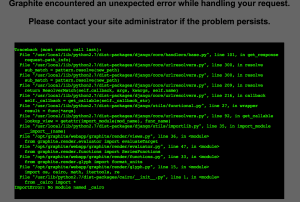
Graphite debugging

This particular error (“ImportError: No module named _cairo”) can be solved in Ubuntu by reinstalling a broken Python Cairo package:

$ sudo apt-get install --reinstall python-cairo

If you get Graphite running but aren’t receiving events, make sure that statsd is receiving the events from your client(s) by enabling its “dumpMessages” option in its config. If it is receiving the events, then check the /opt/graphite/storage/whisper directory. If there’s nothing in it (or it’s not further populating), then you have a file-permissions problem, somewhere (everything essentially needs to be running as the same user, and they all need access to that directory).